Digital Marketing BlogHow to Leave a Google Business Profile Review Without a Gmail Account
 How to Leave a Google Business Profile Review Without a Gmail Account
The short answer
Yes – you can leave a Google review without a Gmail address. What you cannot do is leave one without a Google account. The two are not the same thing: a Google account can be created with any email address you already own (Outlook, Yahoo, iCloud, or a work address), and it does not create a Gmail inbox unless you ask for one. There is no guest or anonymous review option.
That distinction matters, because it is the single most common reason a customer who wants to leave you a review gives up. They see a Google sign-in screen, assume they need to create a Gmail address, and close the tab. The walkthrough below shows the route that avoids that – and the section after it covers the mobile app, which is where most reviews are actually written.
Reviewing a Google Business Profile page when you are already signed in is straightforward: find the business, click the review prompt, and the form opens. The rest of this guide is for everyone else.
However, what happens if you don’t have a Gmail account?
Read our step-by-step guide below:
1. Click on the Review link
2. Agree to Google’s cookies Terms
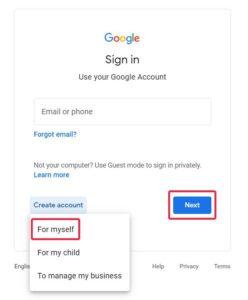
3. Click on Create Account and choose ‘For Myself’
4. Click on ‘Use my current email address instead’
5. Verify the email address you provided
6. Fill out the Google Welcome page
7. Choose Personalization settings
8. Confirm Personalization settings
9. Agree with Privacy and Terms
10. Fill out the Review form
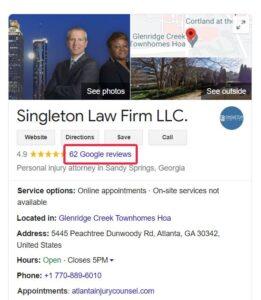
Step 1. Click on the Review link
When you are viewing a business on Google, click on the Reviews link.
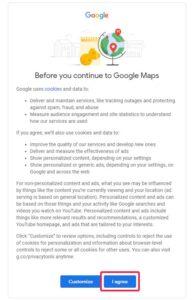
Step 2. Agree on Google’s cookies terms
Google will prompt you to agree with their terms and conditions. Click on ‘I agree’.
Step 3. Click on “Create account”
Click on “Create account” and choose For myself.
Step 4. Create Google Account screen
4.1. Click on “Use my current email address instead”
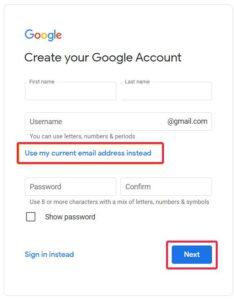
4.2. Enter your existing email address (Yahoo, Hotmail, AOL, Outlook, etc.)
4.3 Create a new password (this is not the password of your existing email)
4.4 Click on “Next”
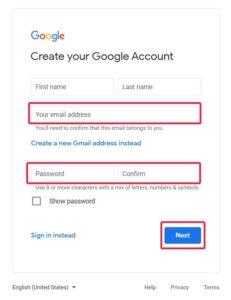
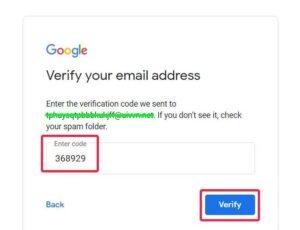
Step 5. Verify your email
5.1 Verify the email address you provided:
- Check your email inbox, you should have an email from Google with a subject: Verify your email address
- Copy the 6-digit code from the email
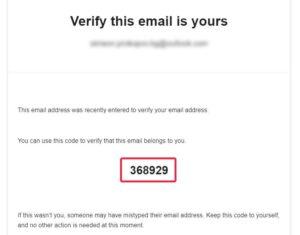
- Go back to your browser where you have to put the verification code.
- Paste the code on the “Verify your email address” window.
5.2 Click on “Verify”
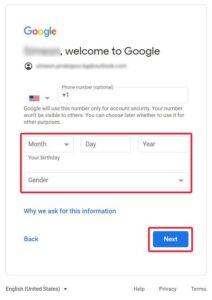
Step 6. Welcome page
- Fill in your birth date and gender.
- Please note that the phone number is optional, you just need to delete the +1 in the phone field before you proceed.
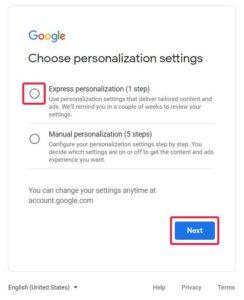
Step 7. Personalization settings
- Choose Express or Manual personalization
- The quick one is Express, click on it.
- Hit ‘Next’
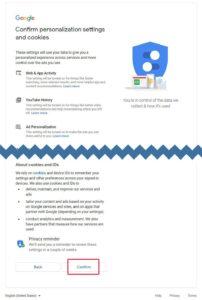
Step 8. Confirm Personalization settings
Confirm Personalization settings
- On this page you need to scroll down and Confirm these settings
Step 9. Privacy and Terms
- This is another informational page sharing Google’s Privacy and Terms
- Click ‘I agree’ to continue
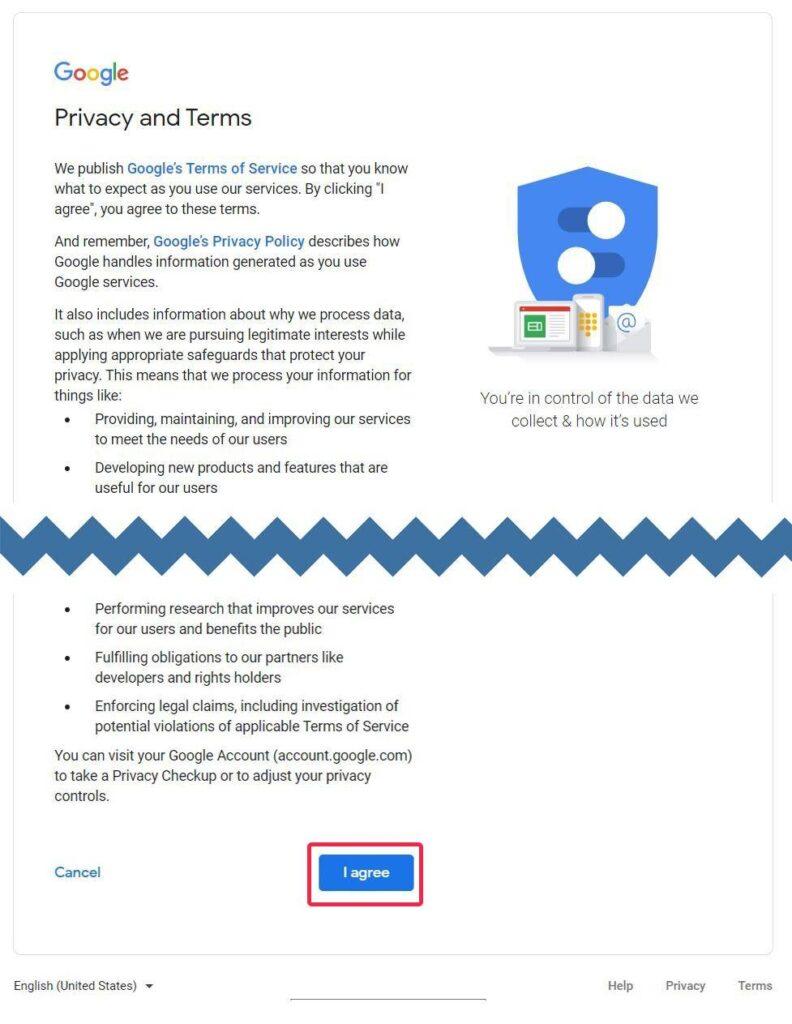
After this final screen, the window will close and you will be able to see the Review page.
Step 10. The Review page
10.1 Fill in the review form:
- Give a number of stars to the business you are rating
- Click on things that you liked
- Write your feedback in your own words
- You can also upload a photo about the business here
10.2 Click on the “Post” button
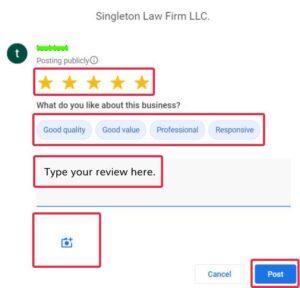
That’s all! Your review is published.
Read more:
- How to Get Your Business Found on Voice Search
- Do reviews help Google ranking?
- Can you buy Google reviews?
How Agile can help
Agile Digital specializes in helping businesses rank higher on Google and get more visibility online.
Get in touch to discuss how we can help you boost your business online.

Our commitment to excellence is showed by our recognition as a Top SEO Company in the United Kingdom for Business Services.
Frequently Asked Questions
<!– wp:rank-math/faq-block {"questions":[{"id":"faq-question-69aeee46af217","title":"Can you leave a Google review without a Google account?","content":"No, you must have a Google account to leave a Google review. However, you do not need a Gmail email address – you can create a Google account using any existing email address (Outlook, Yahoo, company email). This makes it accessible for clients who prefer not to use Gmail.
“,”visible”:true},{“id”:”faq-question-69aeee46af21e”,”title”:”How do I make it easy for clients to leave Google reviews?”,”content”:”Create a direct review link from your Google Business Profile and share it via email, SMS, or QR code. The fewer steps required, the more reviews you’ll receive. You can generate a short link from GBP’s ‘Ask for reviews’ feature or create a custom short URL that goes directly to your review form.
“,”visible”:true},{“id”:”faq-question-69aeee46af21f”,”title”:”Do Google reviews from non-Gmail accounts carry the same SEO weight?”,”content”:”Yes. Google treats all reviews equally regardless of whether the reviewer uses Gmail or created their Google account with a different email provider. The review’s impact on your local SEO depends on the reviewer’s account legitimacy, the review content, and recency, not the email type.
“,”visible”:true}]} –>Can you leave a Google review without a Google account?
No, you must have a Google account to leave a Google review. However, you do not need a Gmail email address, you can create a Google account using any existing email address (Outlook, Yahoo, company email). This makes it accessible for clients who prefer not to use Gmail.
How do I make it easy for clients to leave Google reviews?
Create a direct review link from your Google Business Profile and share it via email, SMS, or QR code. The fewer steps required, the more reviews you’ll receive. You can generate a short link from GBP’s ‘Ask for reviews’ feature or create a custom short URL that goes directly to your review form.
Do Google reviews from non-Gmail accounts carry the same SEO weight?
Yes. Google treats all reviews equally regardless of whether the reviewer uses Gmail or created their Google account with a different email provider. The review’s impact on your local SEO depends on the reviewer’s account legitimacy, the review content, and recency, not the email type.
Leaving a review on a phone
Most reviews are written on a phone, and the flow is shorter than the desktop one above. You still need a Google account, and it still does not have to be a Gmail address.
- Open Google Maps or search for the business name in the Google app or any mobile browser.
- Tap the business, then scroll to Reviews and tap Write a review.
- If you are not signed in, tap Create account → For myself, then Use my current email address instead and enter the address you already use.
- Verify the code Google emails you, complete the short welcome form, then rate and write your review.
One thing worth knowing on Android: the phone may already be signed into a Google account set up when the device was first configured, in which case the review posts under that account’s name. Check which account is active before writing if the reviewer cares which name appears.
If the review does not appear
A review that vanishes after posting is usually one of a small number of things, and none of them require a Gmail address to fix.
- It is still processing. Reviews can take minutes to a few hours to appear publicly. Ask the reviewer to check back later before assuming it failed.
- Google filtered it as suspicious. Brand-new accounts with no profile photo and no review history, several reviews posted from the same network in quick succession, or a review left from the business’s own premises Wi-Fi can all trigger automated filtering.
- It broke a content policy. Reviews naming individual staff, containing contact details or links, or describing a legal dispute rather than a customer experience are commonly removed.
- There are duplicate listings. If the business has more than one Google Business Profile, the review may be sitting on the one nobody looks at. Worth checking before chasing the customer.
If you are the business asking for the review
The account confusion above is a conversion problem, not a technical one – a customer who is willing to review you is lost at a sign-in screen. Three things reduce that friction:
- Send your short review link, not a search result. Google gives every profile a direct review link from the Business Profile dashboard (“Ask for reviews”). It opens the review box straight away, skipping the steps where people give up.
- Say the quiet part in the request. One line – “you don’t need a Gmail address, any email works” – removes the objection before it forms.
- Ask at the right moment. Immediately after a good outcome, from a person the customer dealt with, not weeks later from a generic address.
What you must not do is offer anything in exchange for a review, or filter customers so only happy ones are asked. Both breach Google’s policies and risk the reviews you already have. Reviews also matter well beyond the map pack now: they are one of the sources AI assistants read when deciding which businesses to recommend, which is covered in our guide to whether Google reviews still matter.

Related
Articles