Digital Marketing BlogHow to Leave a Google Business Profile Review Without a Gmail Account
 How to Leave a Google Business Profile Review Without a Gmail Account
Reviewing a Google Business Profile (GBP) page when logged into your Gmail account is quite straightforward. Once you find the business you wish to review, clicking the popup will bring you to the review form.
However, what happens if you don’t have a Gmail account?

Read our step-by-step guide below:
1. Click on the Review link
2. Agree to Google’s cookies Terms
3. Click on Create Account and choose ‘For Myself’
4. Click on ‘Use my current email address instead’
5. Verify the email address you provided
6. Fill out the Google Welcome page
7. Choose Personalization settings
8. Confirm Personalization settings
9. Agree with Privacy and Terms
10. Fill out the Review form
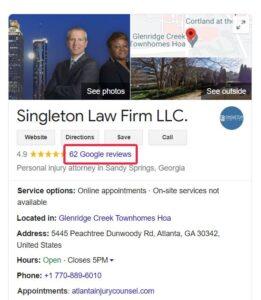
Step 1. Click on the Review link
When you are viewing a business on Google, click on the Reviews link.
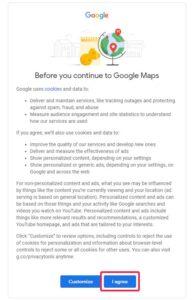
Step 2. Agree on Google’s cookies terms
Google will prompt you to agree with their terms and conditions. Click on ‘I agree’.
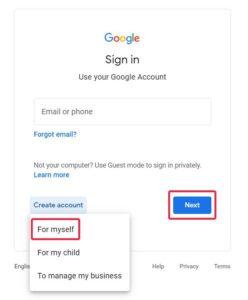
Step 3. Click on “Create account”
Click on “Create account” and choose For myself.
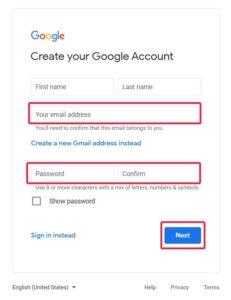
Step 4. Create Google Account screen
4.1. Click on “Use my current email address instead”
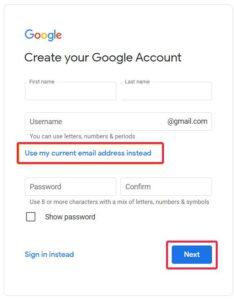
4.2. Enter your existing email address (Yahoo, Hotmail, AOL, Outlook, etc.)
4.3 Create a new password (this is not the password of your existing email)
4.4 Click on “Next”
Step 5. Verify your email
5.1 Verify the email address you provided:
- Check your email inbox, you should have an email from Google with a subject: Verify your email address
- Copy the 6-digit code from the email
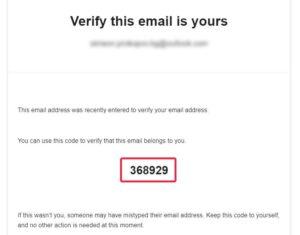
- Go back to your browser where you have to put the verification code.
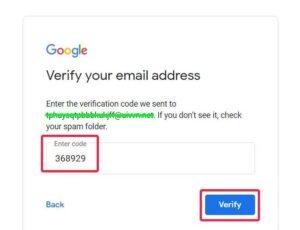
- Paste the code on the “Verify your email address” window.
5.2 Click on “Verify”
Step 6. Welcome page
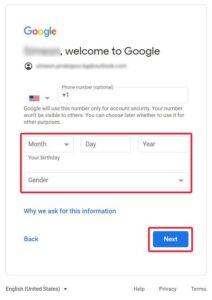
- Fill in your birth date and gender.
- Please note that the phone number is optional, you just need to delete the +1 in the phone field before you proceed.
Step 7. Personalization settings
- Choose Express or Manual personalization
- The quick one is Express, click on it.
- Hit ‘Next’
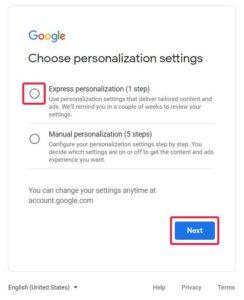
Step 8. Confirm Personalization settings
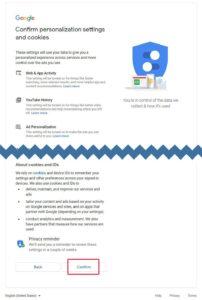
Confirm Personalization settings
- On this page you need to scroll down and Confirm these settings
Step 9. Privacy and Terms
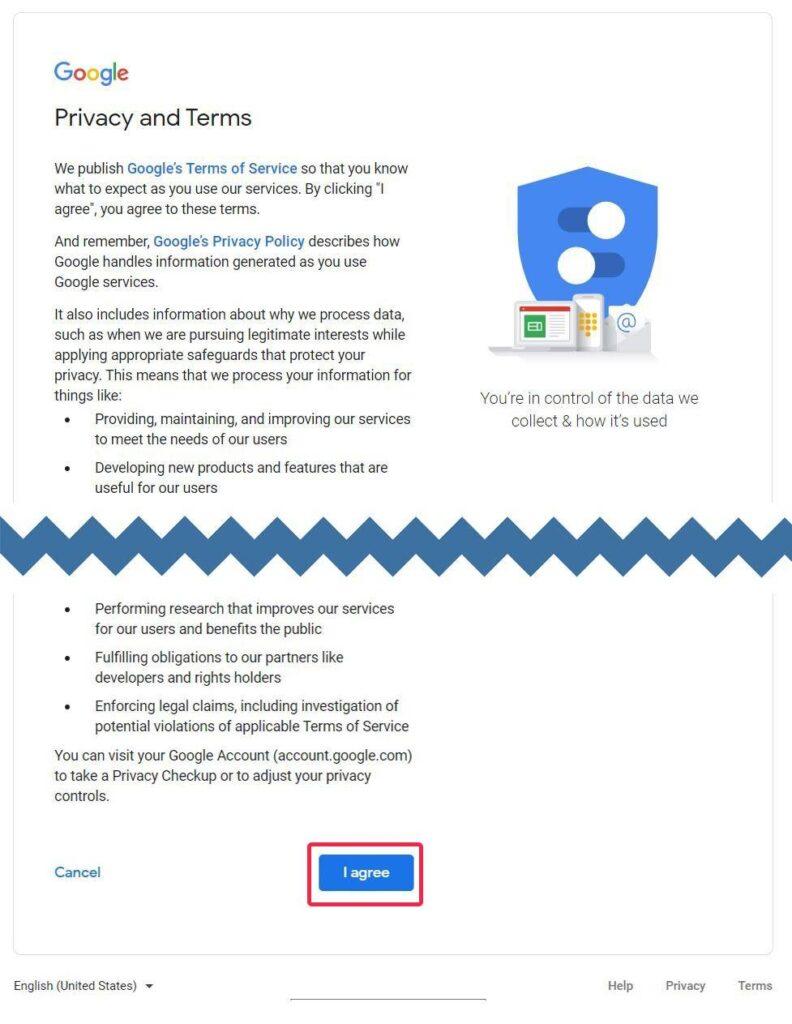
- This is another informational page sharing Google’s Privacy and Terms
- Click ‘I agree’ to continue
After this final screen, the window will close and you will be able to see the Review page.
Step 10. The Review page
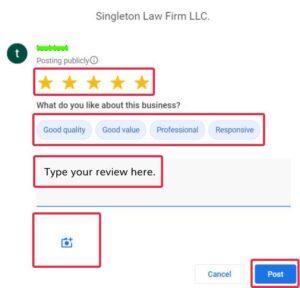
10.1 Fill in the review form:
- Give a number of stars to the business you are rating
- Click on things that you liked
- Write your feedback in your own words
- You can also upload a photo about the business here
10.2 Click on the “Post” button
That’s all! Your review is published.
Read more:
- How to Get Your Business Found on Voice Search
- Do reviews help Google ranking?
- Can you buy Google reviews?
How Agile can help
Agile Digital specializes in helping businesses rank higher on Google and get more visibility online.
Get in touch to discuss how we can help you boost your business online.

Our commitment to excellence is underscored by our recognition as a Top SEO Company in the United Kingdom for Business Services.
Frequently Asked Questions
Can you leave a Google review without a Google account?
No, you must have a Google account to leave a Google review. However, you do not need a Gmail email address — you can create a Google account using any existing email address (Outlook, Yahoo, company email). This makes it accessible for clients who prefer not to use Gmail.
How do I make it easy for clients to leave Google reviews?
Create a direct review link from your Google Business Profile and share it via email, SMS, or QR code. The fewer steps required, the more reviews you’ll receive. You can generate a short link from GBP’s ‘Ask for reviews’ feature or create a custom short URL that goes directly to your review form.
Do Google reviews from non-Gmail accounts carry the same SEO weight?
Yes. Google treats all reviews equally regardless of whether the reviewer uses Gmail or created their Google account with a different email provider. The review’s impact on your local SEO depends on the reviewer’s account legitimacy, the review content, and recency, not the email type.

Related
Articles